# L084-SCE2-CM3 demo

# About

L084 lens with custom IMX477 camera and Raspberry pi computing module demonstration kit is designed for rapid technology evaluation.

Kit contains:

- [L084 lens with controller kit](https://www.kurokesu.com/shop/motorized_zoom_lenses/L084-DEVKIT)
- [IMX477 camera module](https://www.kurokesu.com/shop/camera_modules/IMX477_Z1_LEGACY)
- Raspberry [Pi CM3](https://www.raspberrypi.com/products/compute-module-3/) and [IO boards](https://www.raspberrypi.com/products/compute-module-io-board-v3/)
- Mounting brackets to keep all the parts tidy
- HDMI and USB cables

The lens demonstration kit is set for rapid evaluation and additionally requires:

- HDMI monitor for direct video display with minimal latency
- A Windows (Win7 or Win10 x64) computer to run lens control software

### Dimensions

[![L084+CM3_3.PNG](https://wiki.kurokesu.com/uploads/images/gallery/2022-06/scaled-1680-/l084cm3-3.PNG)](https://wiki.kurokesu.com/uploads/images/gallery/2022-06/l084cm3-3.PNG)# Raspberry Pi setup

<p class="callout info">Already done, if you wish to run a demo, skip to the next chapter</p>

<span data-preserver-spaces="true" style="color: #0e101a; background: transparent; margin-top: 0pt; margin-bottom: 0pt;">SD card preparation:</span>

- <span data-preserver-spaces="true" style="color: #0e101a; background: transparent; margin-top: 0pt; margin-bottom: 0pt;">Use</span>[<span data-preserver-spaces="true" style="color: #0e101a; background: transparent; margin-top: 0pt; margin-bottom: 0pt; ; color: #4a6ee0;"> Raspberry Pi Imager</span>](https://www.raspberrypi.com/software/)<span data-preserver-spaces="true" style="color: #0e101a; background: transparent; margin-top: 0pt; margin-bottom: 0pt;"> to flash the SD card with Raspberry Pi Buster OS (Do not use Bullseye OS)</span>
- <span data-preserver-spaces="true" style="color: #0e101a; background: transparent; margin-top: 0pt; margin-bottom: 0pt;">Within Raspberry, Pi Imager enable SSH, Wifi</span>
- <span data-preserver-spaces="true" style="color: #0e101a; background: transparent; margin-top: 0pt; margin-bottom: 0pt;">Raspberry pi user/pass: pi/test</span>

<span data-preserver-spaces="true" style="color: #0e101a; background: transparent; margin-top: 0pt; margin-bottom: 0pt;">OS preparation:</span>

- <span data-preserver-spaces="true" style="color: #0e101a; background: transparent; margin-top: 0pt; margin-bottom: 0pt;">Optional: use a USB hub to connect the wireless dongle, keyboard, and mouse to Raspberry Pi</span>
- <span data-preserver-spaces="true" style="color: #0e101a; background: transparent; margin-top: 0pt; margin-bottom: 0pt;">Connect display over an HDMI cable</span>
- <span data-preserver-spaces="true" style="color: #0e101a; background: transparent; margin-top: 0pt; margin-bottom: 0pt;">Make sure Raspberry pi is connected to the network</span>
- <span data-preserver-spaces="true" style="color: #0e101a; background: transparent; margin-top: 0pt; margin-bottom: 0pt;">Open terminal (SSH or on Desktop) and update OS: `sudo apt update` `sudo apt full-upgrade`</span>
- <span data-preserver-spaces="true" style="color: #0e101a; background: transparent; margin-top: 0pt; margin-bottom: 0pt;">And reboot `sudo reboot`</span>
- <span data-preserver-spaces="true" style="color: #0e101a; background: transparent; margin-top: 0pt; margin-bottom: 0pt;">Power off Raspberry Pi</span>
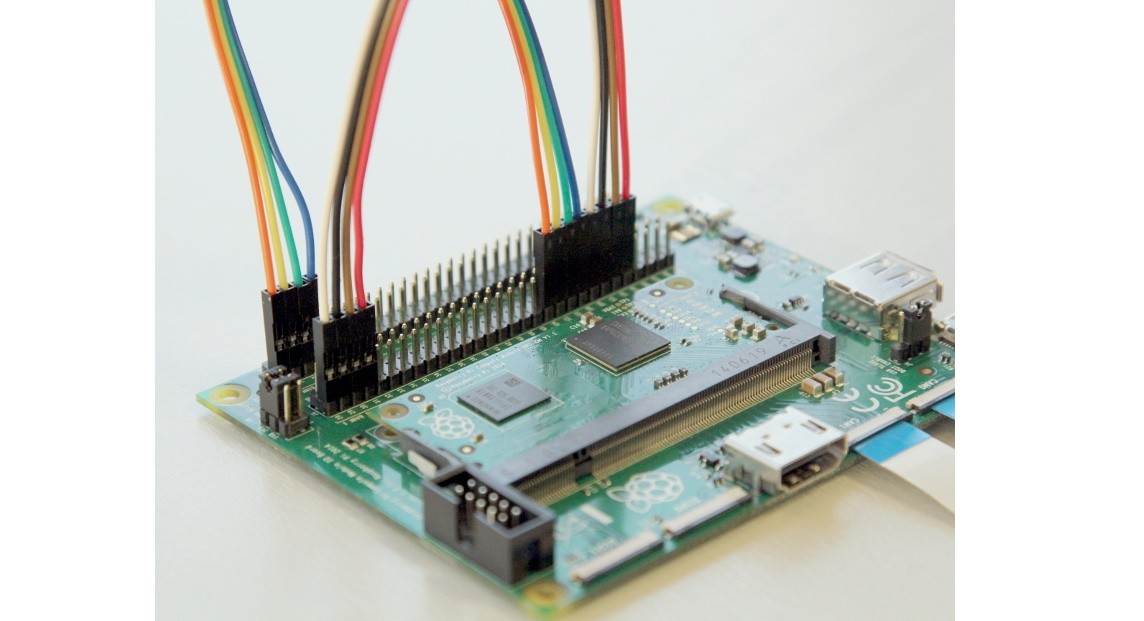
- <span data-preserver-spaces="true" style="color: #0e101a; background: transparent; margin-top: 0pt; margin-bottom: 0pt;">Wire control signals on the IO board like in the diagram below:</span>

[![CMIO-Cam-GPIO2.jpg](https://wiki.kurokesu.com/uploads/images/gallery/2022-06/scaled-1680-/cmio-cam-gpio2.jpg)](https://wiki.kurokesu.com/uploads/images/gallery/2022-06/cmio-cam-gpio2.jpg)

- Connect to the Raspberry Pi terminal
- Run command `sudo raspi-config`
- Select menu Interface options / Camera and select ENABLE
- Do not restart when asked, exit configuration program
- Update blob configuration `sudo wget https://datasheets.raspberrypi.com/cmio/dt-blob-dualcam.bin -O /boot/dt-blob.bin`
- Now reboot with a command `sudo reboot`
- After Raspberry has rebooted, connect to the console and check if the camera is detected `vcgencmd get_camera`
- In order to test the video, run command `raspivid -f -k -awb greyworld -mm average -t 0`
- For more convenient behavior, add this command to `/etc/rc.local` - camera will start video on HDMI port right after reboot# Demo

### Connectivity

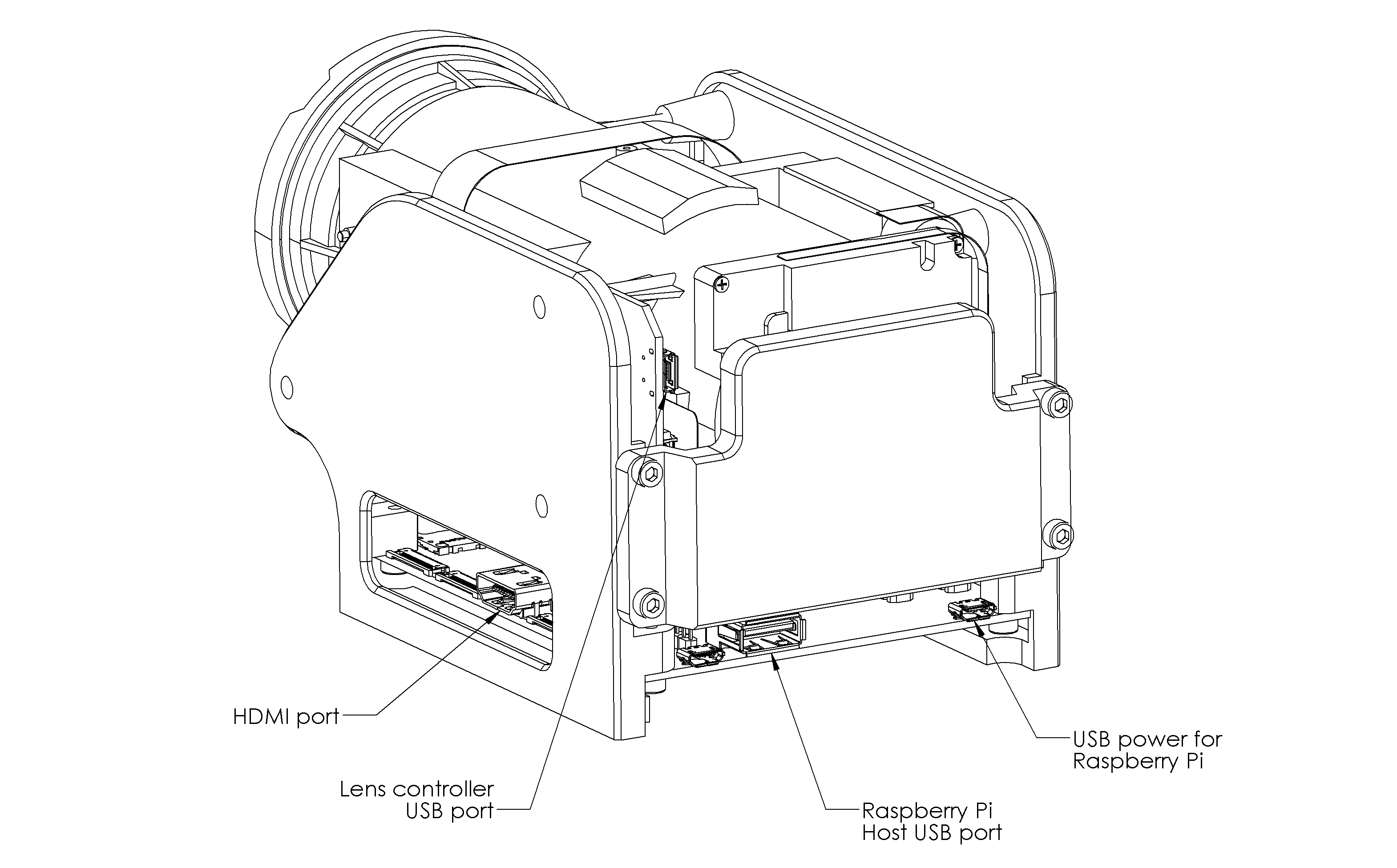
Connect cables between the lens kit and a computer:

- **USB-micro cable #1** - Raspberry Pi power (optionally can be connected to the included wall charger)
- **USB-micro cable #2** - lens controller
- **HDMI** - live camera view

[![L084+CM3_1.png](https://wiki.kurokesu.com/uploads/images/gallery/2022-06/scaled-1680-/c6yl084cm3-1.png)](https://wiki.kurokesu.com/uploads/images/gallery/2022-06/c6yl084cm3-1.png)
### Software

Software is maintained on GitHub. Check the releases section [https://github.com/Kurokesu/SCE2-SDK/releases](https://github.com/Kurokesu/SCE2-SDK/releases) for latest the compiled version.

[![screenshot2.png](https://wiki.kurokesu.com/uploads/images/gallery/2022-07/scaled-1680-/screenshot2.png)](https://wiki.kurokesu.com/uploads/images/gallery/2022-07/screenshot2.png)

### Workflow

1. Connect all the cables (HDMI and both USB) to a computer.
2. After Raspberry Pi boots, it will start displaying a live picture from the camera
3. Download, unzip and start demo software `L084_SCE2_tester.exe`
4. Select com port and press connect, the lens should be identified, and controls enabled
5. Click `Seek ref` for each axis (if the button is not enabled, try moving the axis manually, this is a temporary issue that will be fixed in future releases)
6. Click each preset `Go` button to move the lens to the a different zoom/focus position.
7. Move each axis manually `<` and `>` buttons to change focus and zoom.